
Viewing Transactions
The Transactions list (sidebar → Main → Transactions) is the central log of every payment attempt your merchant account has handled in the currently selected mode. This page walks through the filters, the stats row, the table, and the CSV export.
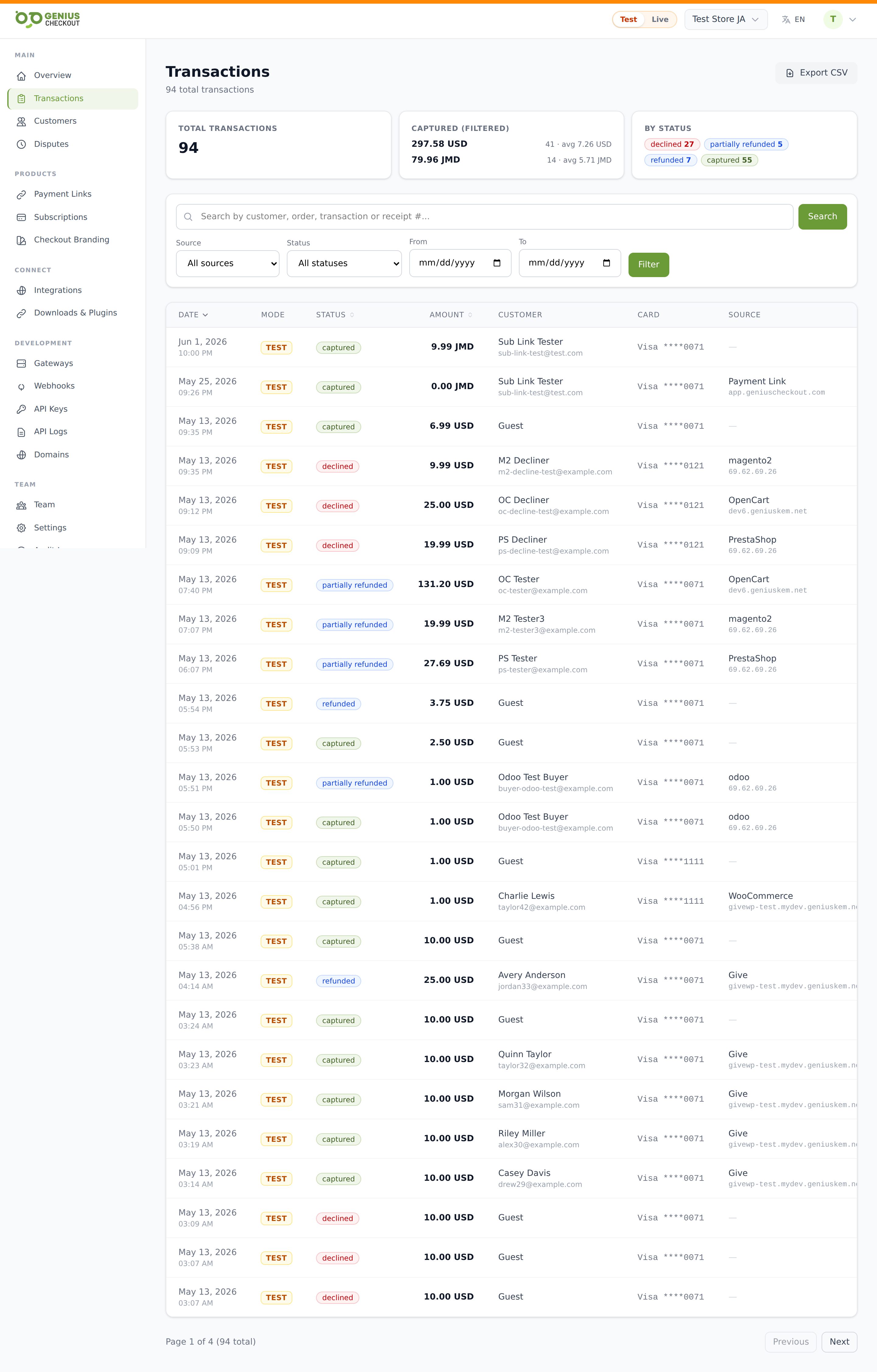
Stats row
When there are any transactions matching your current filters, three cards render across the top:
- Total Transactions — count of every transaction in the filter (not just the visible page).
- Captured — captured-amount totals per currency, with the transaction count and average per currency next to each row. No FX is applied — JMD and USD show as separate lines.
- By Status — coloured pills, one per status that's actually present in the filter (Captured, Authorized, Processing, Declined, Failed, Refunded, etc.). Each pill is clickable — clicking one sets the Status filter to that value.
All three reflect the active filter, not just the visible page, so a 30-day Declined filter shows the real decline count even across thousands of records.
Filters
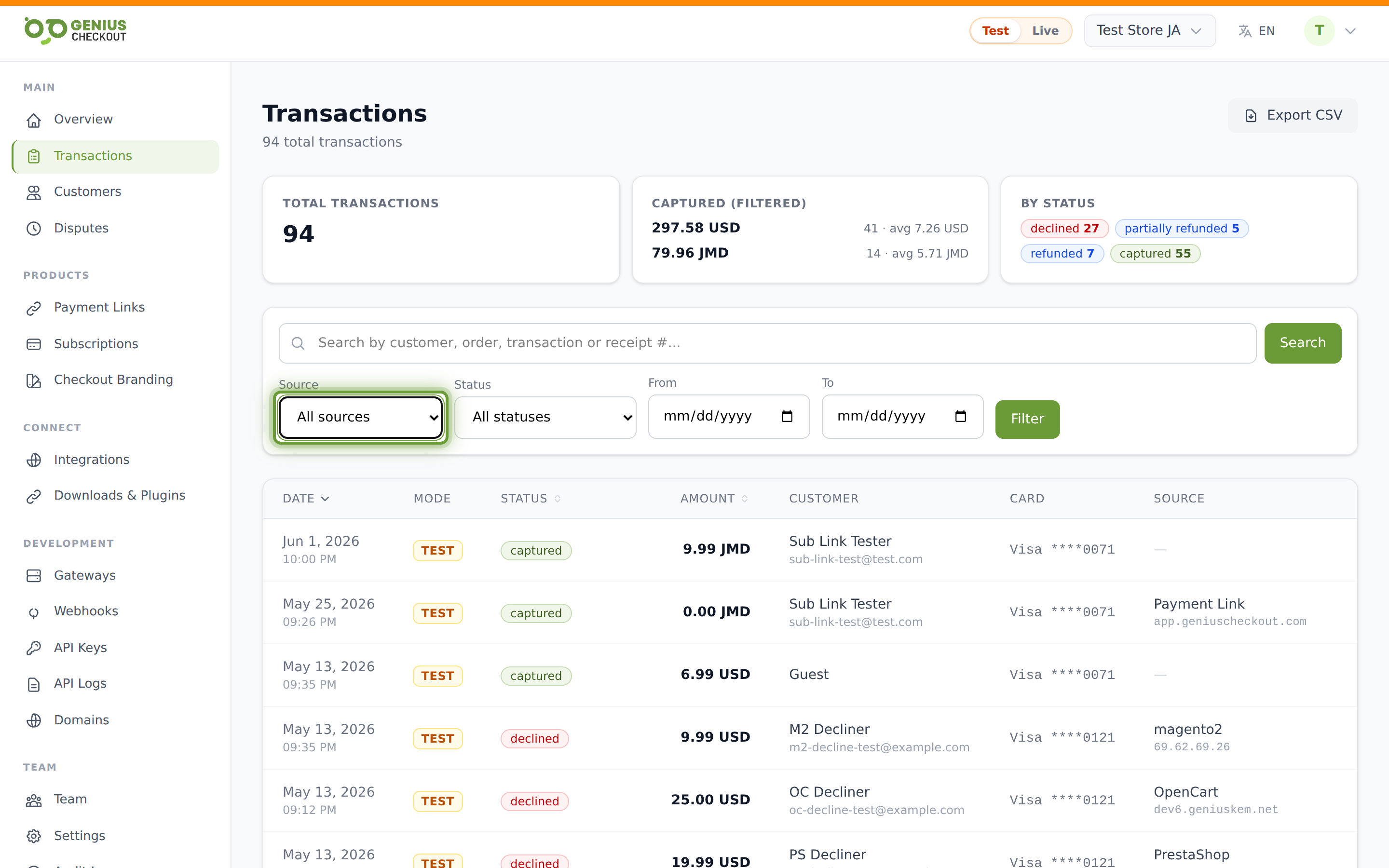
Below the stats row sits the filter panel:
- Search (free text, full-width) — matches transaction id, order id, receipt number, gateway transaction id, description, customer name and email, and
metadata.order_id. Press Enter or click Search. - Source — every channel Genius Checkout knows about, including ones you haven't transacted on yet. Includes Hosted Checkout, Payment Link, Direct API, Subscription, Saved Card, plus every platform integration (WooCommerce, Give, Ecwid, HighLevel, HubSpot, Shopify, BigCommerce, Magento, PrestaShop, OpenCart, Wix, Tiendanube, VTEX). Switching to a source you've never seen returns an empty list rather than hiding the option.
- Status — every transaction status the orchestrator can write: Created, Processing, 3-D Secure pending, Pending, Authorized, Captured, Partially refunded, Refunded, Declined, Failed, Voided, Expired.
- From / To — date range pickers. Both inclusive.
- Clear — resets every filter except the saved-card token filter (if active).
Filter changes apply immediately when you change a dropdown or date; free-text search needs Enter or the Search button.
The table
Columns, left to right:
| Column | Notes |
|---|---|
| Date | Sortable. Date on top, time below in grey. Default sort. |
| Mode | TEST or LIVE pill — coloured by mode. |
| Status | Sortable. Coloured pill matching the stats-row colour. |
| Amount | Sortable. Right-aligned, with the ISO currency code suffix to disambiguate $ across USD/JMD/BBD/TTD/CAD/AUD. |
| Customer | Name on top, email in grey. Falls back to "Guest" + a metadata email when no customer record exists. |
| Card | Card brand and last 4, monospaced. Dash if not a card payment. |
| Source | Human label (e.g. "WooCommerce", "Payment Link"). Origin domain shows in grey below. |
| Order | The store's order id from metadata.order_id, monospaced. |
| Gateway | Friendly gateway name (e.g. "PowerTranz", "MPGS"). |
| ID | The Genius Checkout transaction external id, monospaced. |
Click any row to drill into the transaction detail page. The Date, Status, and Amount headers sort — click once for descending, again for ascending.
CSV export
The Export CSV button (top right) downloads every transaction matching your current filters as a CSV. Useful for accounting hand-offs, reconciliation, or external reporting. See Exporting Data for what's included in each row.
Saved-card drill-down
If you arrived from a customer's saved payment method by clicking View transactions, a green chip appears above the filter panel showing the brand and last 4 of the token you're filtered to. Other filters (date, status, source) now refine within that token. Click Clear on the chip to drop back to all transactions.
Empty states
- No transactions yet — shown when the merchant has never received a transaction in the current mode.
- No results — shown when filters exclude everything; clear or relax them.
TIP
The transactions list is mode-scoped — you only see Test transactions when in Test mode and Live transactions when in Live. See Test Mode vs Live Mode.