
Create a one-off payment link
Use a fixed-amount link when you know the price up front — invoices, tickets, single product purchases, deposits.
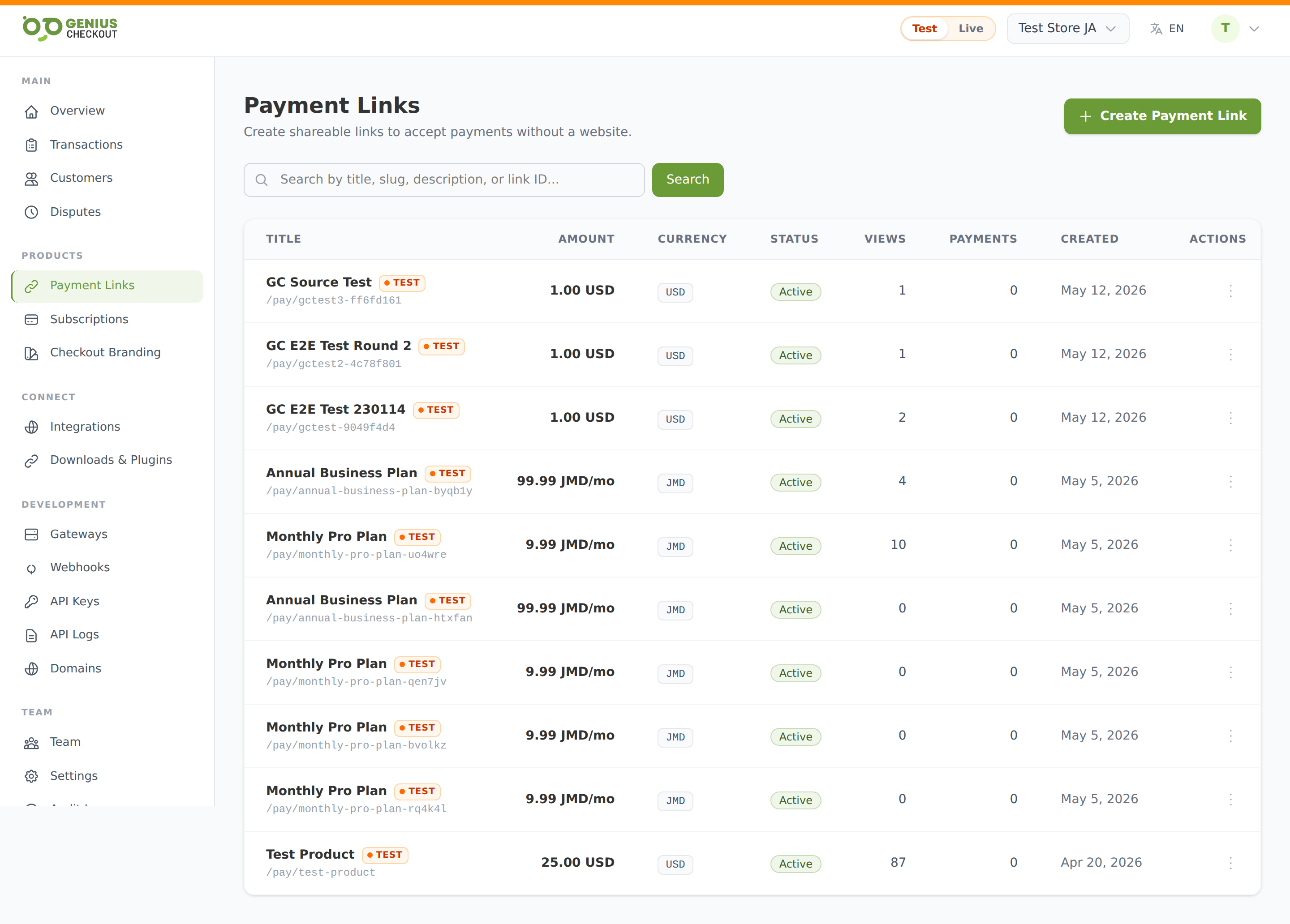
Quick create
From Payment Links, click Create payment link.
- Title — what you call it internally (also appears at the top of the buyer's checkout page).
- Description — public-facing summary shown to the buyer.
- Amount type — pick Fixed amount.
- Amount — the price in your chosen currency (entered as a decimal like
49.99). - Currency — must be supported by at least one of your active gateways.
- Click Create link.
The link is created in draft if you skipped activation — open it and click Activate to publish, or it will be active immediately if your account defaults that way. The mode (test vs live) is pinned to whichever mode your portal pill is on at the moment of creation.
Advanced fields
These appear under the basic form or on the edit page after creation.
| Field | What it controls |
|---|---|
| Success URL | Where to redirect the buyer after a successful payment. Optional — defaults to a generic Genius Checkout thank-you page. |
| Failure URL | Where to send the buyer if their card is declined. |
| Max payments | Cap on total successful charges. Once reached, the link auto-pauses. Useful for limited-quantity ticket sales. |
| Expires at | Date/time after which the link rejects new attempts. Past payments are unaffected. |
| Multi-currency | Pick additional Allowed currencies for the buyer to choose at checkout. Each must be supported by one of your active gateways. Leave empty to lock the link to its primary currency. |
| Allowed payment methods | Restrict which of your configured gateways can process the link. Empty = any gateway that supports the currency. |
Success/failure URLs must be public
Both URLs must resolve over the public internet — localhost and IP addresses are rejected.
What buyers see
The public URL is https://pay.geniuscheckout.com/pay/<slug> (the slug is auto-generated from your title and editable on the detail page). Buyers land on a hosted page that shows the title, description, amount, and a card form — no Genius Checkout login required.
Test it first
Switch your portal to Test mode, create a sandbox link, and pay it with a test card before flipping to Live.
Next steps
- Customer-entered amount link — for donations and tips
- Subscription link — for recurring billing
- Add custom fields — collect extra info at checkout