
Test Mode vs Live Mode
Genius Checkout runs every merchant account in two parallel worlds — Test and Live. The toggle in the top bar (next to the merchant switcher) decides which world you're looking at right now. This page explains what flips and what doesn't.
The mode pill
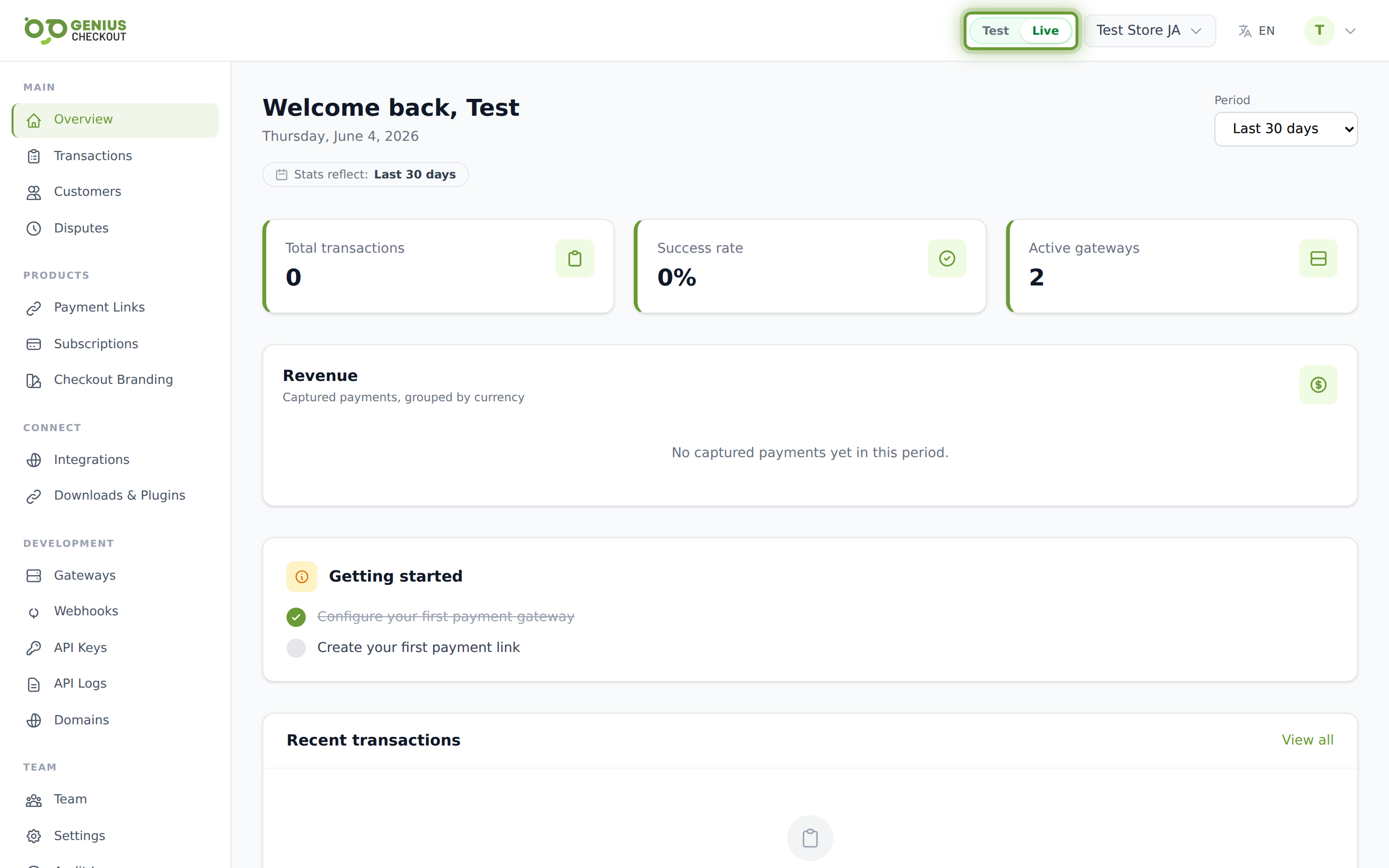
In the top bar you'll see a rounded pill with two segments labelled Test and Live. The active mode is shown with a white background and bold colored text:
- Orange background and accent — you're in Test mode. A thin orange bar also appears at the very top of every page as a permanent reminder.
- Green background and accent — you're in Live mode.
Clicking the inactive segment posts to /merchant/view-mode, persists the choice to your session, and reloads the page so every list and counter re-fetches under the new scope.
What is mode-scoped
When you flip modes, the following all refetch under the new scope:
| Surface | Scoped? |
|---|---|
| Transactions list and detail | Yes |
| Payment links | Yes |
| Subscriptions | Yes |
| Customers | Yes |
| Disputes | Yes |
| API keys | Yes (each key is either a test key or a live key) |
| Webhook endpoints and deliveries | Yes |
| Dashboard stats and KPI tiles | Yes |
| Gateway configurations | Each gateway has separate Test and Live credentials — see Test vs Live Credentials |
| Checkout branding | No — branding applies to both modes |
| Team and roles | No — your team is the same in both modes |
| Integrations connections | Connection metadata is shared; each integration decides per-connection whether it ran in Test or Live |
Flipping safely
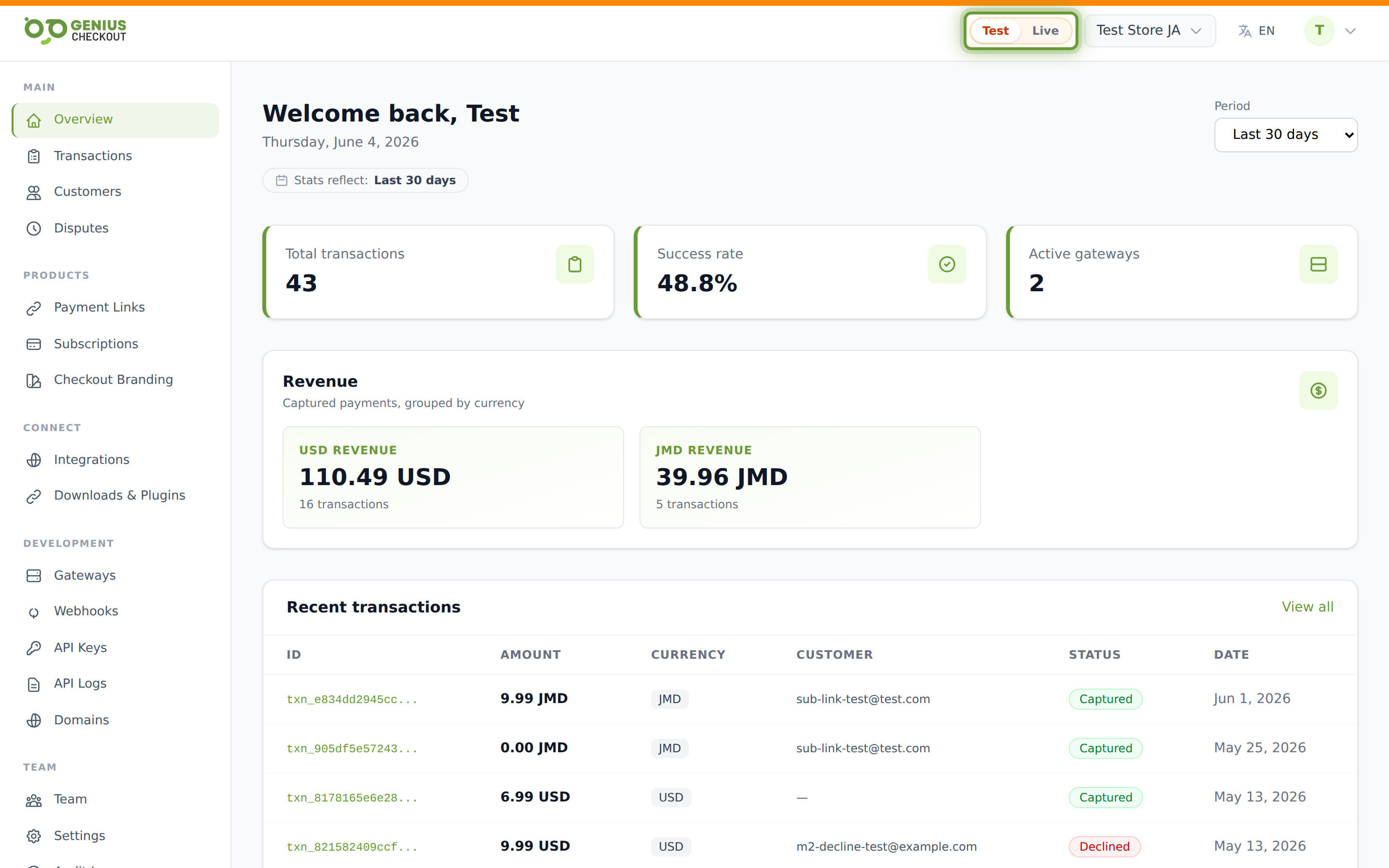
The toggle is non-destructive. You're never deleting or hiding anything — you're just changing which subset the portal renders. Flip as often as you need to.
WARNING
Test mode transactions cannot move money. Live mode transactions do. Before you flip to Live and process a real payment, make sure your gateway has Live credentials saved (the Gateways page shows the status badge).
When to flip to Test
- Verifying a new payment link before sharing it
- Trying out a new gateway's hosted page UI
- Testing webhook deliveries against a development endpoint
- Walking through a checkout flow with a test card
- Reproducing a customer's reported issue without charging them again
When to flip to Live
- Once your gateway has been provisioned with real credentials
- When you're checking on actual revenue, refunding a real customer, or chasing a real dispute
TIP
The mode is per-session, per-user. Your teammate looking at the same merchant account may be on Live while you're on Test. That's intentional — testing doesn't take your colleagues out of production.
Switching merchants vs switching modes
These are separate controls in the top bar. The merchant switcher (showing the merchant's name) moves you to a different merchant account. The mode toggle changes the view scope within the current merchant. Switching merchants does not change your mode — you'll land in whichever mode you were in last for that merchant.