
QuickBooks Online
Connect QuickBooks Online to mint a Genius Checkout pay link for every invoice and embed it into the invoice email, PDF, and Customer Memo. Refunds you issue in Genius Checkout write back as QuickBooks Payment entities so the books stay in sync.
Install
From Integrations → Connect a platform, click QuickBooks Online. You'll be redirected to Intuit's OAuth consent screen — accept it. We exchange the auth code for an access + refresh token and create the IntegrationConnection row scoped to your QuickBooks realm ID. A gc_live_… and gc_test_… API key pair is provisioned automatically.
Preview status
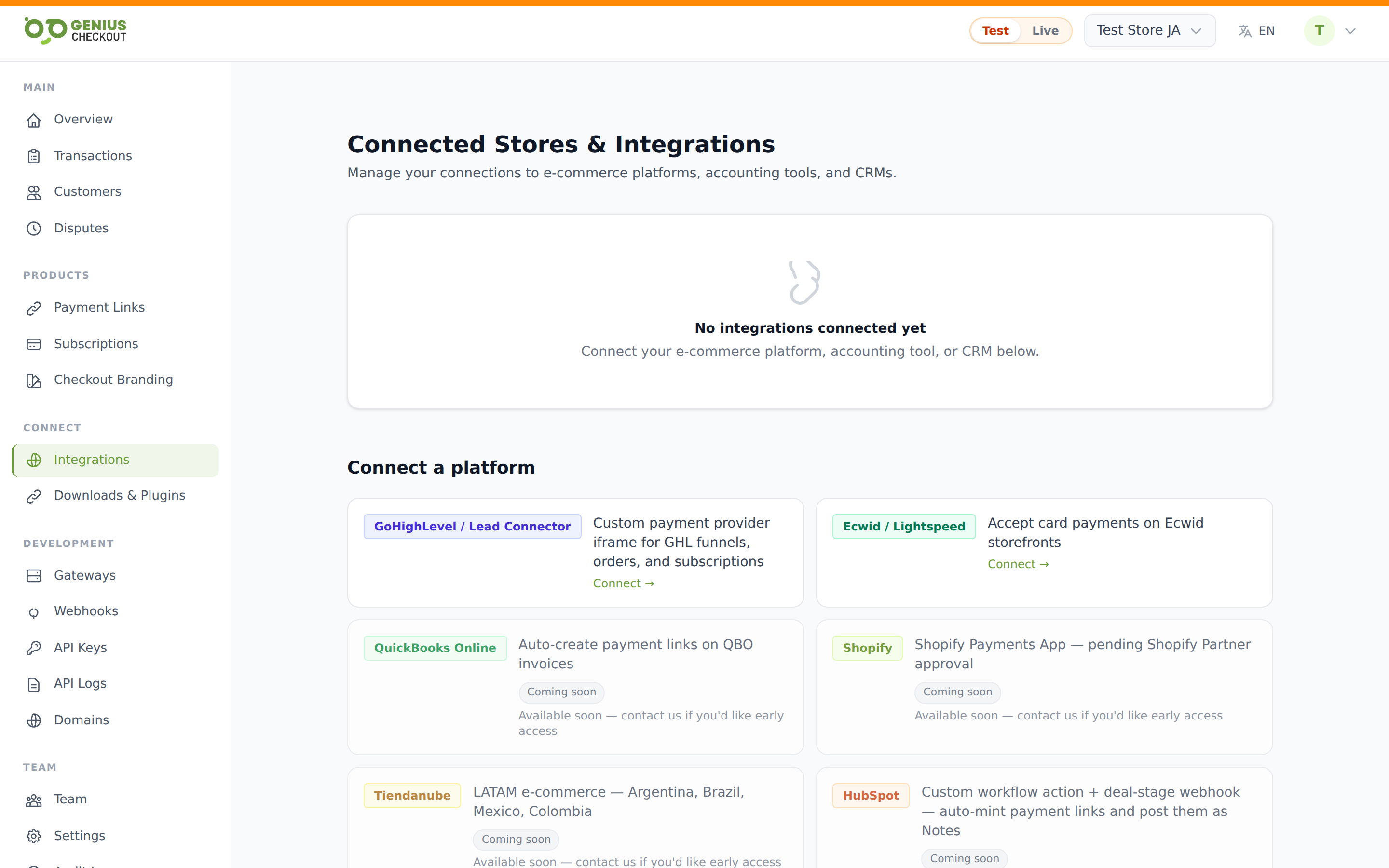
QuickBooks shows a Coming soon badge in the catalog because we're still awaiting Intuit's production verifier-token approval. The flow works today via direct install — contact support for early access.
Auto-configured Default Customer Message
The integration writes a static company-wide URL into your QuickBooks Default Customer Message so that every invoice PDF includes a typeable pay URL even if the buyer ignores the deep link:
https://app.geniuscheckout.com/qbo/pay/{your-merchant-slug}The detail-page settings panel shows this URL and gives you a Copy button. You can toggle the automation off if you'd rather edit the message yourself.
Per-invoice deep links
A few minutes after each new invoice is sent, we patch its Customer Memo with a unique deep link of the form:
https://app.geniuscheckout.com/qbo/pay/{merchant-slug}/{INVOICE_NUMBER}?locale=enThe settings panel includes a Test this link widget — type any invoice number and click Open preview to see what the buyer experiences.
Send-from-GC takeover
Optional toggle in the settings panel: Send invoice emails from Genius Checkout: ON / OFF.
- OFF (default) — QuickBooks sends its usual invoice email; we just patch in the pay link.
- ON — Genius Checkout emails the buyer instead, attaching the QuickBooks-rendered PDF and adding a one-click pay button. Stops the double-email problem.
When the takeover is ON, click Save in QuickBooks rather than Save and send — we pick the invoice up off the webhook and email the buyer for you. If you click Save and send anyway, both QuickBooks and Genius Checkout will email the customer.
Refunds write back
Any refund you issue from Genius Checkout (see Issuing Refunds) creates a Payment entity in QuickBooks against the same invoice with a negative amount, so the invoice ledger stays accurate. No manual reconciliation needed.
Disconnecting
Disconnect stops new invoices being patched and stops the send-from-GC takeover. Remove also deletes the encrypted refresh token — you'll need to reinstall to reconnect.