
Saved Payment Methods
A saved payment method (also called a card token) is a reusable reference to a buyer's card. Once a customer saves their card, you can re-charge them without asking for the card details again — useful for repeat purchases, subscriptions, and one-click checkouts.
This page covers how saved cards appear in the Customer Detail page, what each field means, and how to investigate per-token activity.
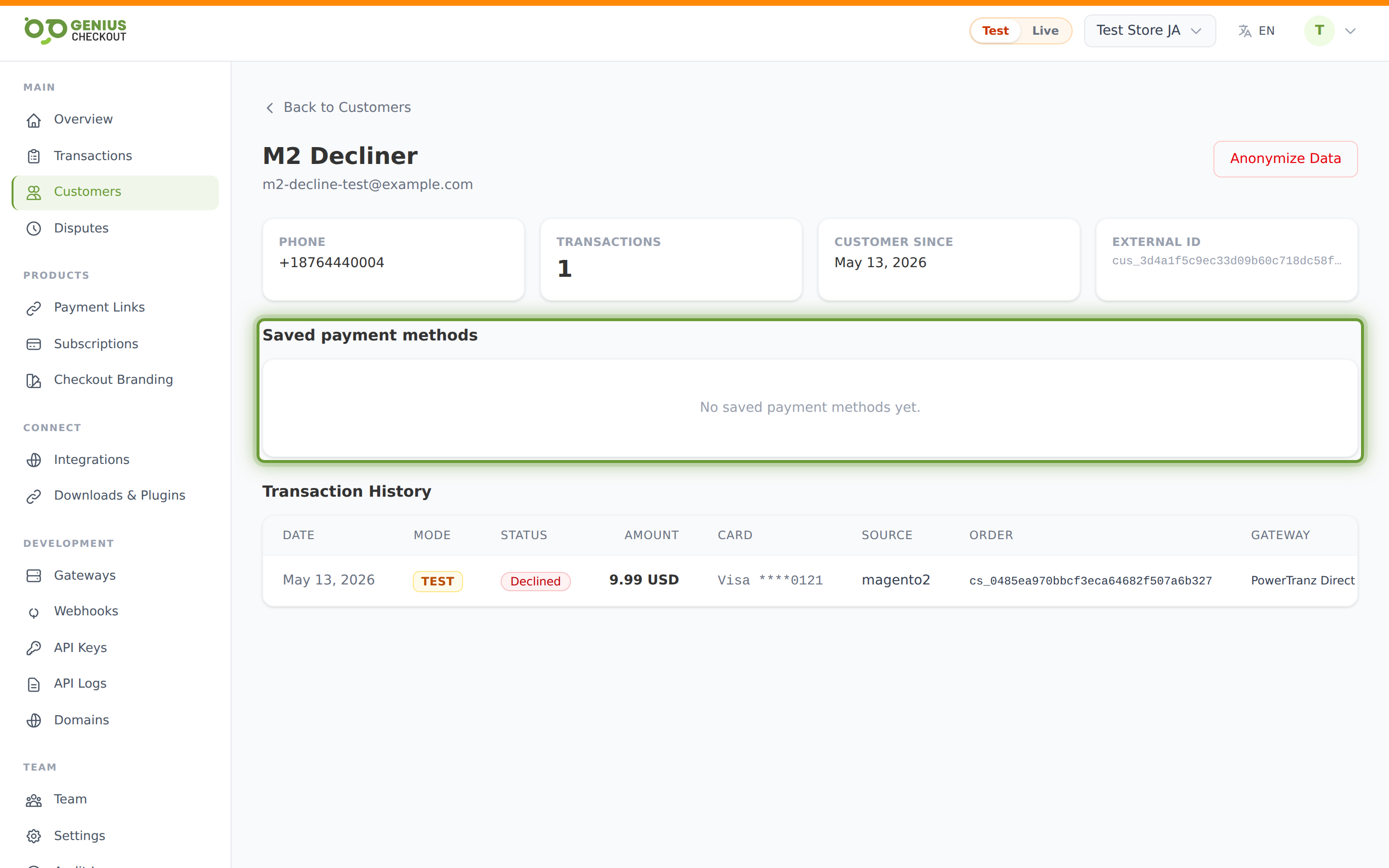
What's actually stored
Saved cards never store the raw card number on Genius Checkout. What's persisted:
- The gateway token — an opaque identifier issued by the underlying acquirer (PowerTranz, MPGS, etc.).
- The brand (Visa, Mastercard, Amex, Discover, JCB, etc.).
- The last 4 digits of the PAN.
- The expiry month and year.
- An internal status flag —
active,expired, orrevoked.
Re-charging a saved token goes through your gateway's token API, not through any card-number lookup. You can't, for example, paste the token into another acquirer.
Where saved cards come from
Tokens get created by any flow that asks the buyer "save this card for next time":
- Hosted Checkout with the Save card option enabled.
- Payment Links flagged as
recurringor with the save-card opt-in. - Subscriptions — the first charge is always tokenised so we can rebill at the next interval.
- Direct API calls that pass
setup_future_usage=true(or the equivalent platform-specific flag). See the tokenization developer doc.
The token is attached to whichever Customer record the original transaction was attached to. If the same buyer pays you again from a different email, you'll end up with two separate Customer records and two separate token lists.
Status meanings
| Status | What it means | What you can do |
|---|---|---|
| active | Token is in good standing and we believe the card is still valid. | Re-charge freely. |
| expired | The expiry month/year is in the past. | Charges will be declined by the network. Ask the buyer to re-enter their card. |
| revoked | Either you (via the API) or the gateway (via lifecycle events) marked the token as no longer usable. | Cannot re-charge. The buyer must enter a new card. |
The status pill in the Saved payment methods list uses green for active, amber for expired, and grey for revoked.
Success and decline counts
Each row shows two small counters:
- Successful (green dot) — total captured transactions on this token.
- Declined (red dot) — total declines on this token.
A high decline count on an "active" token is a useful signal — the card may have been closed by the issuer even though the expiry hasn't lapsed, or the buyer has reached a daily limit. Consider proactively reaching out before the next rebill.
Viewing transactions per token
Click View transactions at the right of any token row to jump to the Transactions list filtered to that specific token. A green chip appears above the filter panel showing the brand and last 4 — you can refine further with date, status, or source filters while staying inside the token scope, or click Clear on the chip to leave that filter.
When tokens get auto-revoked
The platform may flip a token to revoked automatically when:
- The gateway's network update service tells us the card was reported lost or stolen.
- Repeated declines on the same token indicate the card is dead.
- The merchant detaches the token via API.
Auto-revocation does not generate an outgoing webhook today.
Tokens and refunds
You can refund a transaction that was charged via a saved token exactly the same way as any other transaction. See Issuing Refunds. The token itself is unaffected by the refund — it remains active for the next charge unless you explicitly revoke it.