
API Keys
The API Keys page is where you mint the credentials any external system (a custom integration, a WordPress plugin, a Zapier zap, a backend script) uses to call the Genius Checkout API on your behalf. Open it from Developer → API Keys.
The page has three sections: Test Keys, Live Keys, and a collapsed Revoked Keys archive.
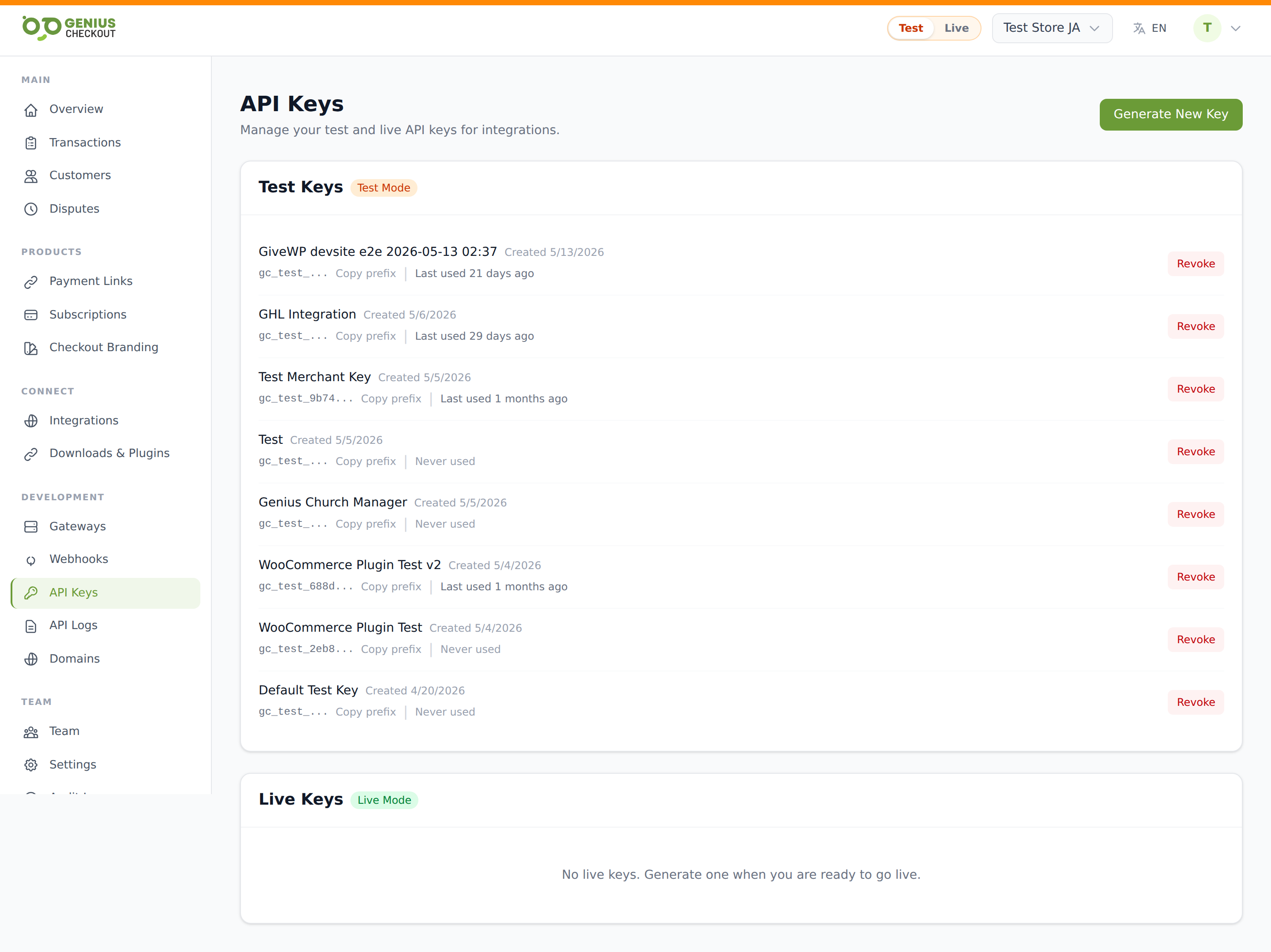
Live vs test keys
Every key carries a mode that locks what it can do:
gc_live_…— hits live gateways, charges real cards, fires live webhooks.gc_test_…— sandbox-only. Charges test cards through test-mode gateway credentials, fires the same webhook shape against your endpoints but with atestmode flag. Cannot accidentally take real money.
The prefix is part of the key, not just a label — pasting a gc_test_ key into a live integration is rejected, and vice versa.
Generating a key
Click Generate new in the page header. The modal asks for two things:
- Name — required, max 100 chars. Make it descriptive: WooCommerce — main store, Backfill script — June 2026.
- Mode — Test or Live.
After clicking Generate, the page shows the full, unredacted key once at the top inside a yellow banner. Copy it now — we hash the key on the server and never display the full value again. You'll only see the prefix going forward (e.g. gc_live_AbCd…).
You only see the full key once
If you close the banner without copying, you'll need to generate a new key and revoke the lost one. Treat live keys like passwords — never commit them to git, never paste them into a public chat.
Auto-provisioned keys from integrations
Every OAuth integration (HighLevel, QuickBooks, Wix, Ecwid, Shopify, HubSpot, FreshBooks, etc.) generates its own pair of gc_live_ / gc_test_ keys during the OAuth callback. Those keys appear in the list with a name prefixed Auto: {provider} — for example Auto: gohighlevel. You can revoke them like any other key, but the integration will stop working until you reconnect.
Manually-created keys appear with whatever name you typed.
What the list shows
Each row shows:
- Name and creation date
- Prefix (the first few chars of the key) with a one-click Copy prefix action
- Last used — relative timestamp of the most recent authenticated request. Never used if no request has yet hit our API with this key.
Revoking a key
Click Revoke on a row. The confirmation modal warns you the action is immediate — any integration using that key will start receiving 401 Unauthorized within seconds. Revoked keys move to the bottom Revoked Keys section so you can audit history.
You cannot un-revoke a key. Generate a new one to restore access.
Rotation guidance
There's no automatic rotation schedule. We recommend:
- Yearly — rotate live keys used by long-lived backend systems.
- Immediately — rotate any key you suspect was leaked (committed to git, pasted in support tickets, etc.).
- On staff offboarding — rotate any key a departing engineer had access to.
For integrations, use the Rotate keys button on the integration detail page once that flow ships. Until then, contact support if you need to rotate an auto-provisioned key.
When to use which mode
- During development, against staging gateways → test.
- In production traffic that should charge real cards → live.
- Anything customer-facing that you'd be embarrassed to have take a real card → test.
See Test Mode vs Live Mode for the broader test-mode story across the portal.