
First Login & Dashboard Tour
This page walks through the chrome of the merchant portal: what each sidebar group does, what the top bar controls, and where to find the test/live toggle and merchant switcher.
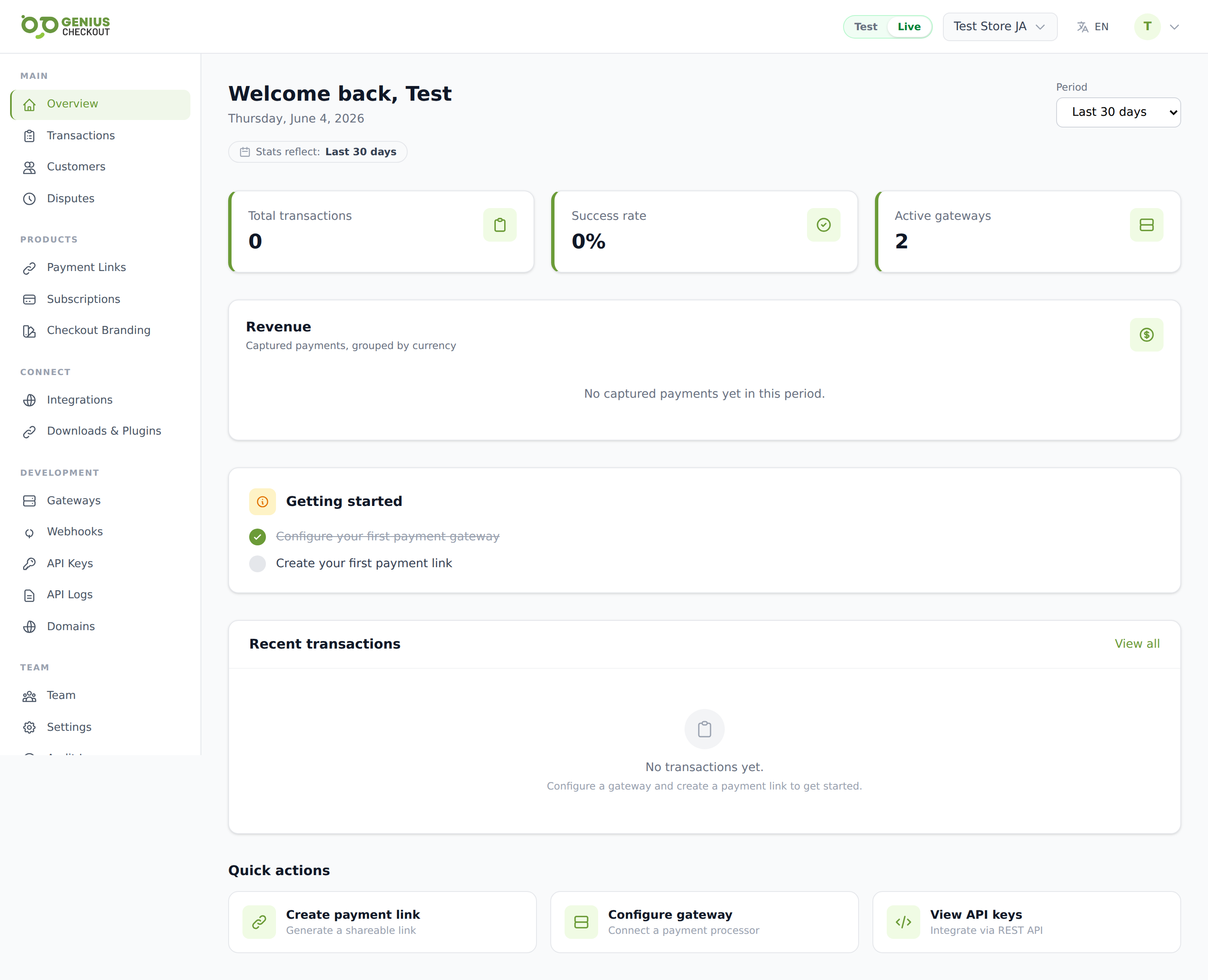
Signing in for the first time
Sign in at app.geniuscheckout.com with the email address that received your invitation (or that you registered with). If your account has more than one merchant attached to it, you'll land on a merchant selector first — pick the merchant account you want to work on. You can switch later from the top bar.
TIP
If you don't have a password yet, click Forgot password? on the login form to set one. Two-factor authentication can be enabled afterward from your profile — see MFA & Security.
Top bar
The fixed bar across the top has, from left to right:
- Logo — clicking it always returns you to the Overview dashboard.
- Test / Live toggle — a pill with two segments. The active mode shows white background and colored text (orange for Test, green for Live). Clicking the inactive segment switches the view. See Test Mode vs Live Mode for what changes when you flip it.
- Merchant switcher — shows your current merchant's display name. Click to open a dropdown of every merchant account your user belongs to. If you have more than eight accounts, a search box appears. The dropdown also has Manage accounts (full management page) and Create new account.
- User menu — your avatar circle. Opens to Profile, Billing, Admin (if you're a platform admin), and Sign out.
When you're in Test mode the entire page picks up a thin orange bar across the very top — it's deliberately hard to miss.
Sidebar
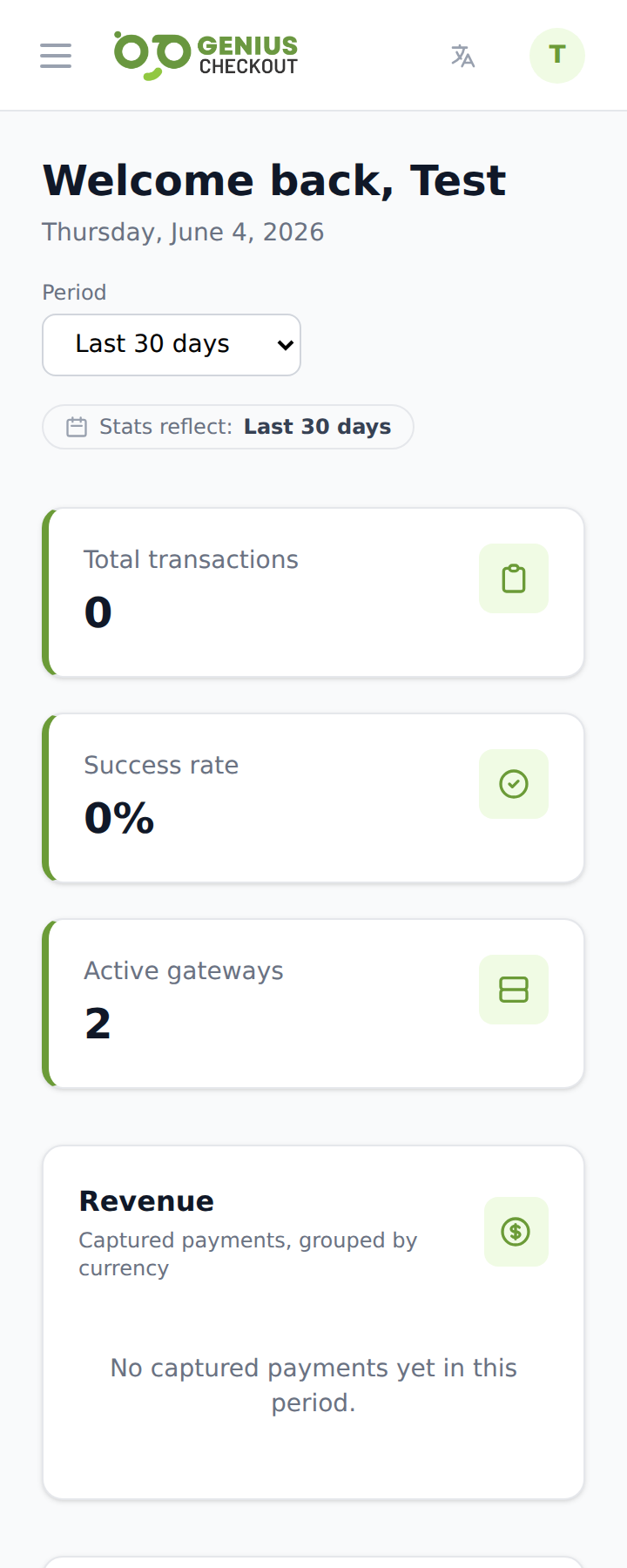
The sidebar is grouped into five sections:
| Group | Items |
|---|---|
| Main | Overview, Transactions, Customers, Disputes |
| Products | Payment Links, Subscriptions, Checkout Branding |
| Connect | Integrations, Downloads & Plugins |
| Development | Gateways, Webhooks, API Keys, API Logs, Domains |
| Team | Team, Settings, Audit Log |
The active page is highlighted with a green left border and a light-green background. Clicking any item reloads the main content area while leaving the sidebar and top bar in place.
INFO
What you see in the sidebar depends on your role. A Viewer, for example, won't see write-action buttons inside Team, Gateways, or API Keys even though the pages themselves load. The role permission matrix lives in Team Members & Roles.
Overview dashboard
The default landing page after sign-in. It shows headline numbers — recent transactions, current period totals, status breakdowns — scoped to whichever mode (Test or Live) you currently have selected. See Dashboard & Stats for what each tile means.
Where to go next
- New to the platform? Read Test Mode vs Live Mode before doing anything else.
- Inviting your team? Jump to Team Members & Roles.
- Ready to take a real payment? You'll need to add a gateway first.