
Gateway appearance
The Appearance card on each gateway's edit page controls how that gateway is presented to buyers on the checkout payment-method picker. It's optional — defaults work fine — but it's how you make checkout look like your brand instead of the gateway's.
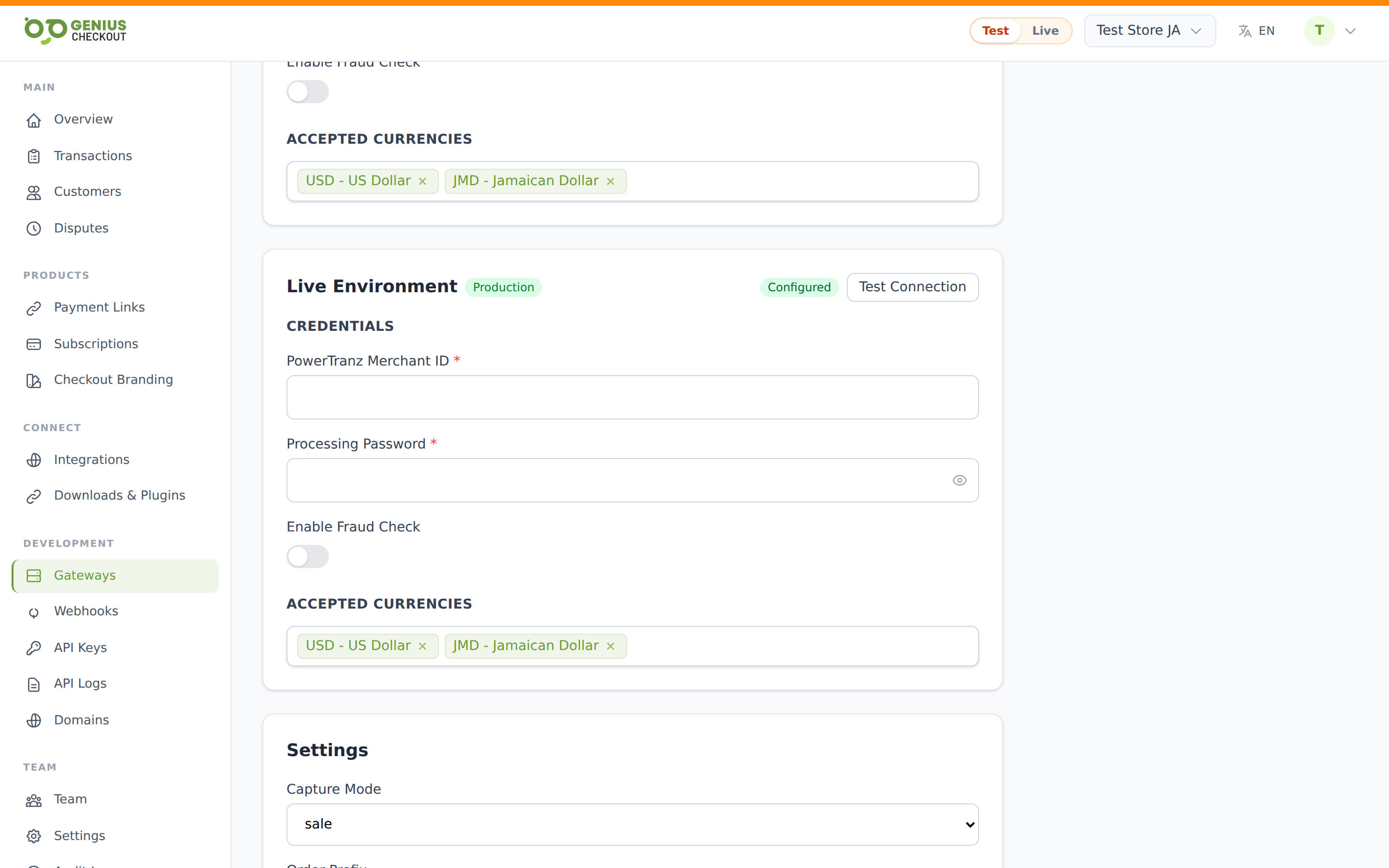
Available after first save
The Appearance card only appears once the gateway has been saved (it needs an ID to attach uploads to). Configure the gateway first, hit save, then scroll down.
Display name
Override the label shown on the checkout tile in place of the gateway's default name. Max 80 characters.
| Default name | Override example |
|---|---|
PowerTranz Direct | Pay by card |
MPGS Hosted Payment Page | Mastercard / Visa |
PayPal | PayPal or Venmo |
Leave blank to use the canonical gateway name.
Logo
Upload an image that replaces the default gateway icon on the picker tile.
- Formats: PNG, JPG, SVG, or WebP
- Max size: 2 MB
- A live preview shows the current logo to the left of the file picker
- Clear removes the logo and reverts to the gateway's default
Logos save instantly on upload — no separate "Save appearance" click needed.
Supported card brands
A checkbox grid of canonical card networks. Tick the ones this gateway can actually charge — the chosen brand icons appear as small badges on the buyer-facing picker tile. The available list:
- visa, mastercard, amex, discover, diners, jcb, dankort, unionpay, maestro
Each checkbox shows the brand's icon next to it. Missing SVGs fall back to a text chip with the brand name so the picker never breaks.
Match what your processor actually accepts
Don't tick Amex if your MPGS profile doesn't include Amex — buyers will get a decline at the worst possible moment (after entering card details). The supported-cards toggles are presentational only; they don't change what the gateway actually accepts.
Custom card icons
For payment methods that aren't in the canonical card list — local wallets, voucher networks, regional rails — use Custom card icons.
Each entry is a label + image pair:
- Type a label (e.g.
GiroPay,iDEAL,LINK). - Pick an image (same format/size limits as the logo).
- Click Add icon.
Custom icons render on the picker tile next to the standard brand badges. Click Remove on any row to delete it.
Where this shows up
All appearance settings affect the checkout payment-method picker — the screen the buyer sees when starting a payment with multiple gateways available. With a single configured gateway, the picker is skipped, but the chosen logo + display name still appear on the gateway's section of the checkout form.
The buyer-facing rendering also respects:
- Your account-level checkout branding (logo, colours, footer text)
- The link's title and description (set on the payment link itself)