
Default Custom Fields
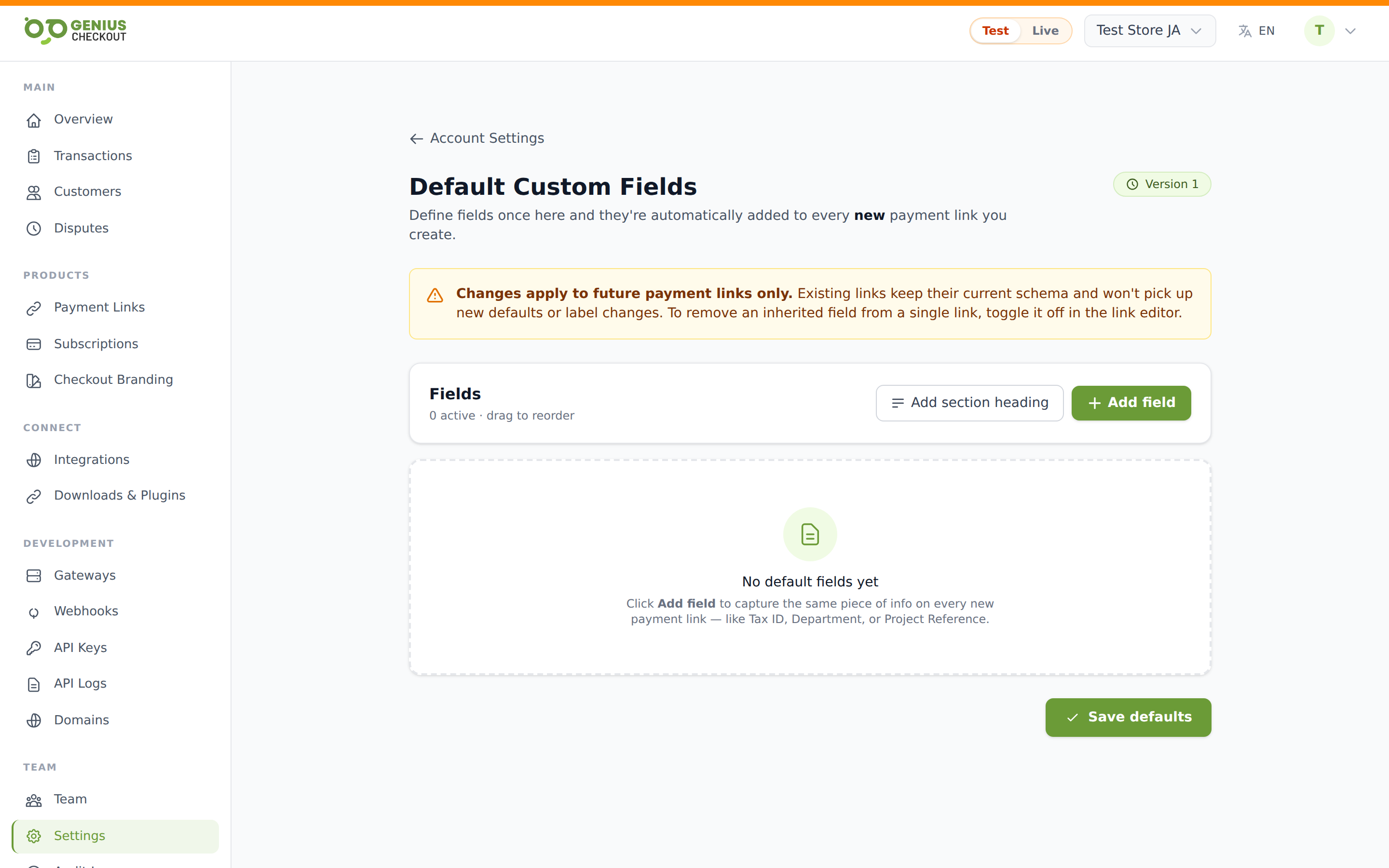
Define a set of custom fields once and they'll automatically be added to every new payment link you create. Useful for collecting structured data like Tax ID, Department, Project Reference, or compliance attestations on every checkout.
Open the page from Settings → Default Custom Fields.
How inheritance works
The header shows a Version badge. Each time you save changes, the version number increments. New payment links snapshot the current version into their own schema at creation time.
Changes apply to future payment links only
Existing links keep their current schema and won't pick up new defaults or label changes. To remove an inherited field from a single link, toggle it off in the link editor. To add a field to an existing link, edit that link directly.
This snapshot pattern means a label change here doesn't retroactively rewrite the responses already captured against the old label — past checkout records stay readable forever.
Supported field types
- Text — single-line input
- Long text — multi-line textarea
- Number
- Phone
- URL
- Date
- Dropdown — picks from a list of options
- Checkbox
- Radio — picks one option from a list
- Section heading — visual separator, not a real input
Adding a field
Click Add field in the page header. A new card appears with an empty Label. Fill in:
- Label (required) — what the buyer sees above the input.
- Type — pick from the list above.
- Required — buyer must answer before paying.
- Options — only for Dropdown and Radio. Use the + Add option button to add rows.
- Placeholder and Help text — under the Advanced disclosure.
Drag the row by the dotted handle to reorder, or use the up/down arrows on the right.
Edit-lock pattern
Once a field has been used on a live payment link, you cannot change its type retroactively (text → number, etc.). You can still rename the label, change requirements, and reorder. The lock keeps every historical response in a known shape so reports don't break.
Archive vs hard delete
The trash icon archives a field — it's hidden from new payment links but past responses survive and stay readable. Archived rows live in a collapsible panel at the bottom of the page. From there you can Restore a field or Hard delete it (only safe if no responses exist).
Prefilling via URL
Each field has a Copy prefill fragment action that copies a snippet like ?cf_fld_tax_id=. Append it to a payment link URL with a value (e.g. …?cf_fld_tax_id=12345) and the field arrives pre-populated at checkout.
PII flag
For privacy-sensitive fields (national ID, date of birth), mark the field as containing personally identifiable information so it's redacted in exports, audit logs, and webhook payloads.