
Exporting Data
Genius Checkout exports transactions and customers as CSV for the bookkeeping, accounting reconciliation, and tax-time workflows that don't fit inside the portal.
Transactions export
Where to find it: open Viewing Transactions, then click the Export button in the page header.
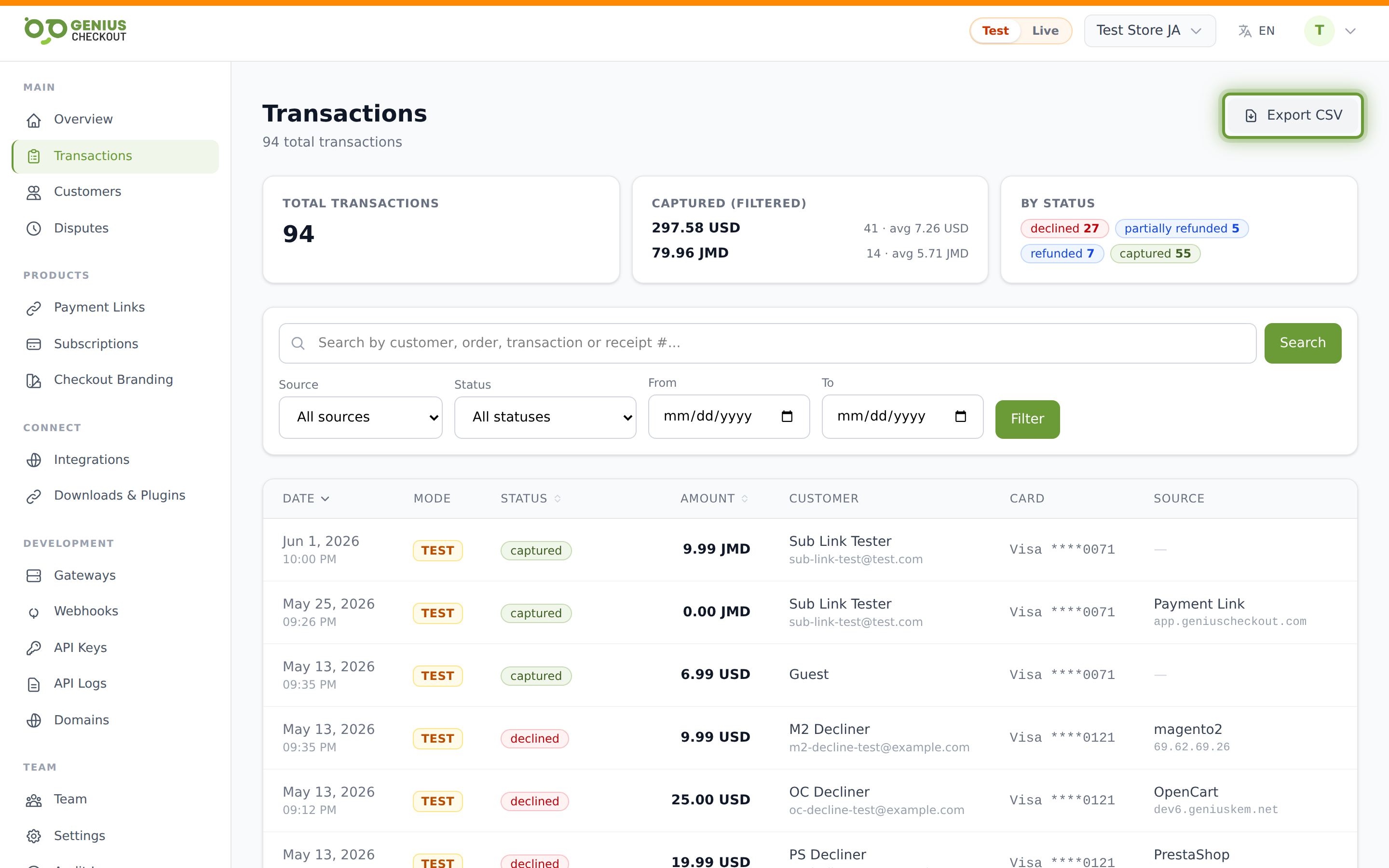
The export respects your active filters and the current test/live view mode — if you've filtered the list to a single customer or a date range, the export contains exactly those rows. The filename includes the mode (e.g. transactions-live.csv) so test-mode exports don't get mixed up with the real books.
Column set
The CSV ships with the full operational column set (~30 columns):
Transaction ID, External ID, Mode, Status, Amount (minor), Currency, Subtotal (minor), Tax Amount (minor), Tax Rate, Tax Name, Capture Method, Order ID, Receipt Number, Customer ID, Customer Email, Customer Name, Gateway, Gateway Transaction ID, Payment Link, Payment Link ID, Source, Card Brand, Card Last 4, Payment Method Type, Origin Domain, Client IP, Geo Country, Geo City, Description, Created At, Updated At
Minor-unit amounts
The Amount (minor), Subtotal (minor) and Tax Amount (minor) columns are integers in the currency's smallest unit — cents for USD, sen for JMD, 1000ths for BHD. Divide by 100 (or by the right factor for zero/three-decimal currencies) to get the human amount.
What's intentionally excluded
The CSV is a reconciliation tool, not a credential dump. We do not include card PAN, CVV, gateway credential IDs, or raw 3DS authentication tokens. Card brand and last-4 are kept because they're needed for reconciliation; the full PAN is never persisted.
Customers export
Where to find it: open Customer List, then click the Export button.
Columns: ID, External ID, Name, Email, Phone, Created At.
The file is named with the active view mode (e.g. customers-live.csv).
Payment-link-level export
The Payment Link Detail page also offers a per-link export that adds one column per custom field the link captured. Useful when you've used custom fields to gather structured order data and want each field as its own spreadsheet column.
How exports are delivered
Exports stream straight from the merchant portal as a CSV download — there's no queue, no email-when-done, no async job. For larger date ranges this can take 10-30 seconds; leave the tab open. If your browser times out, narrow the date range and run two smaller exports.
Scheduled / recurring exports
Not currently supported in the merchant portal. For automated daily/weekly exports, pull the same data via the API using a gc_live_… key — see the Pagination reference.
File encoding
UTF-8 with the standard CSV escaping (RFC 4180). Excel on Windows may misread non-ASCII characters if you double-click the file; open it via Data → From Text/CSV and pick UTF-8 explicitly, or open in Google Sheets, which auto-detects encoding correctly.