
Custom fields on payment links
A payment link can ask the buyer for extra information beyond their card details — their t-shirt size, a delivery address, a signed consent, a dropdown of pickup locations. The answers are stored on the transaction and exportable as CSV.
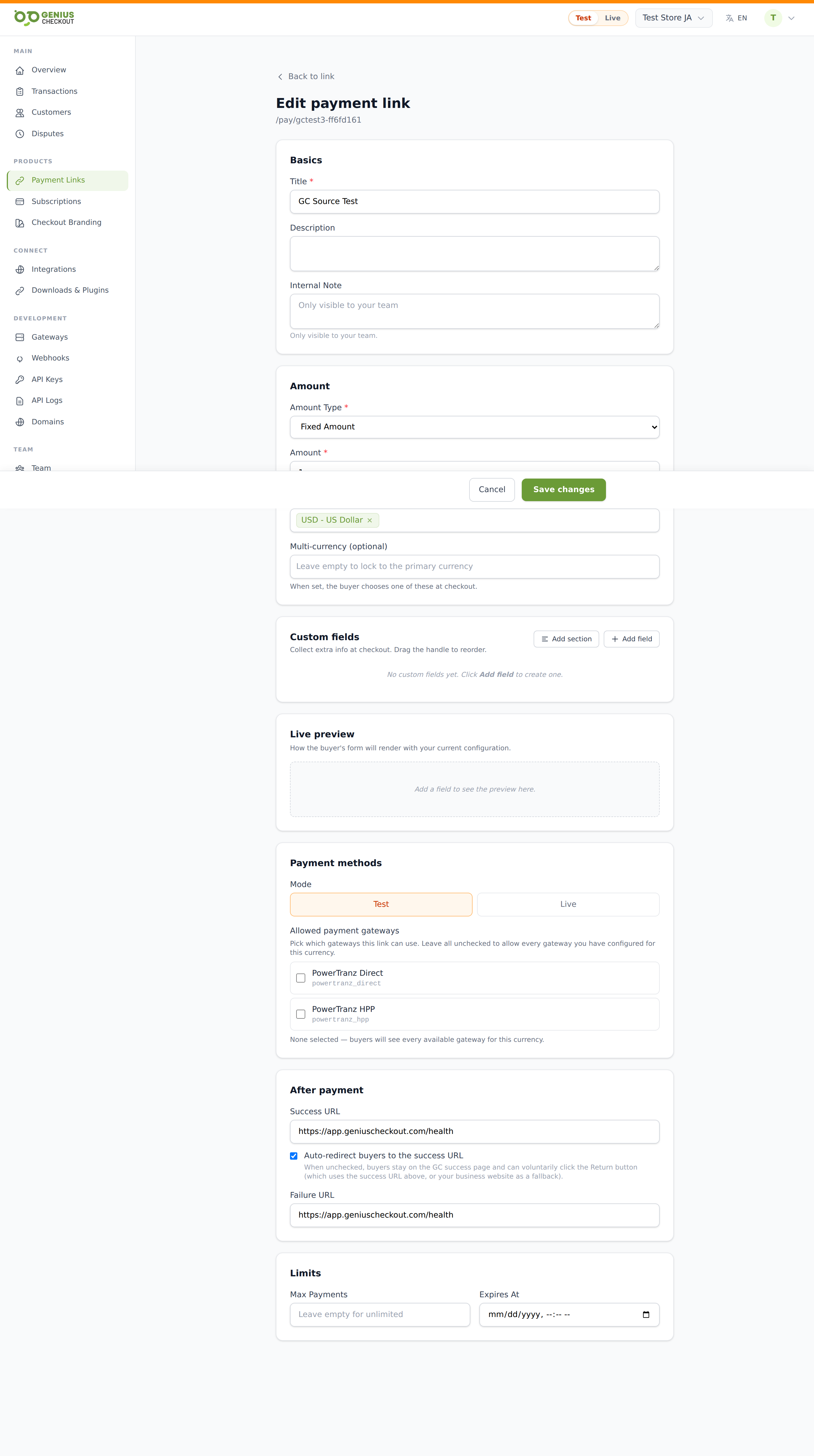
Where to add them
Open a link's detail page, click Edit, scroll to the Custom fields section, and click Add field. Each field becomes a row in the buyer's checkout form, in the order you arrange them (drag-handle reorder).
A link can have up to 20 fields.
Field types
| Type | What buyers see | Notes |
|---|---|---|
text | Single-line input | The default; good for names, codes. |
textarea | Multi-line input | For longer notes. |
number | Numeric input | Optional min_value / max_value validators. |
email | Email input with format validation | |
phone | Phone input | |
url | URL input | |
date | Date picker | |
select | Dropdown | Requires an options list. |
radio | Radio buttons | Requires options. |
checkbox | Single checkbox | Yes/no. |
multi-checkbox | Multiple checkboxes | Requires options; buyer picks any number. |
consent | Mandatory-checked consent box | For terms, waivers — won't submit until ticked. |
country | Country dropdown | Uses the platform country list. |
hidden | Not shown | Prefill-only; great for campaign tracking. |
read_only | Displayed but un-editable | For prefilled values you want the buyer to see and confirm. |
address_composite | Grouped street/city/state/postal/country fields | Submits as a single structured value. |
rating | Star rating | |
signature | Draw-to-sign canvas | Captures a signature image. |
repeating_group | "Add another" set of sub-fields | E.g. attendee 1, attendee 2, ... |
section | Heading row, not a question | Used to group fields with a title + optional intro text. |
Required, hidden, PII
Each field has toggles:
- Required — buyer can't submit until they fill it.
- Hidden — keep the row in the schema but don't render it on this link (handy when you want to drop a default field on a single link).
- PII — flag the answer as personal info. PII responses are redacted in webhook payloads and click-to-reveal-gated on the transaction detail page.
Default fields vs. link-specific fields
Your account-wide Default custom fields (Branding & Custom Fields → Default Custom Fields) are automatically prepended to every link. They appear with a purple "From account defaults" chip in the editor.
You can:
- Hide an inherited default on a specific link (toggle the Hidden checkbox).
- Reorder them relative to your link-specific fields.
You can't change the label, type, or options of an inherited field from a link — that lock prevents accidental drift from your account-wide schema. To change a default, go to the Default Custom Fields page.
Prefilling fields via URL
Append ?cf_<field_id>=<value> to the public URL to prefill a field. The editor has a Copy ID button on each row that copies the exact ?cf_…= fragment for you.
Locked prefill
Enable Locked prefill on a field to make the prefilled value tamper-proof — the buyer sees it read-only and any attempt to modify the URL parameter returns a 422 at checkout. Useful for prefilling things like account IDs or referral codes that shouldn't be edited.
What happens to the answers
- Stored on the transaction record under
metadata.custom_field_responses. - Visible on the transaction detail page.
- Aggregated on the link's detail page under Custom-field responses (counts, sums, top values per field).
- Exportable from the link's detail page via the Download CSV button — one row per transaction, one column per field.