
MPGS setup
Genius Checkout supports two Mastercard Payment Gateway Services (MPGS) integrations:
- MPGS Direct API — the buyer enters card details on the Genius Checkout payment page.
- MPGS Hosted Payment Page — the buyer continues to a Mastercard-hosted payment page.
Your MPGS account is issued through your bank or acquirer—for example, Sagicor Bank Jamaica. This guide uses Sagicor in a few examples, but always use the Merchant ID, gateway URL, portal, and feature instructions supplied by your own provider.
Choose Direct API or Hosted Payment Page
| MPGS Direct API | MPGS Hosted Payment Page | |
|---|---|---|
| Card entry | On the Genius Checkout page | On the MPGS-hosted page |
| Typical PCI scope | Greater scope; commonly SAQ A-EP | Lower scope; commonly SAQ A |
| Checkout branding | Genius Checkout branding | Merchant details and logo are sent to MPGS |
| Saved cards and subscriptions | Supported when tokenization is enabled by the bank | Not supported by this Genius Checkout integration |
| 3-D Secure controls | Configurable in Genius Checkout | Managed by MPGS Hosted Checkout and the merchant profile |
| Payment action | Authorize Only or Authorize & Capture | Authorize Only or Authorize & Capture |
| Recommended when | You need saved cards, subscriptions, or the most consistent on-site checkout | You want MPGS to collect card details and minimize PCI scope |
Confirm PCI scope
The table describes the normal integration model, not a compliance ruling. Confirm your final PCI DSS questionnaire and responsibilities with your acquiring bank or Qualified Security Assessor.
The bank must provision the model you select. Valid credentials alone do not automatically enable Direct API transactions, Hosted Checkout, 3-D Secure, tokenization, or every payment operation.
What your bank or acquirer gives you
The onboarding package from your bank or acquirer—for example, Sagicor—normally provides or enables:
| Item | What it is used for |
|---|---|
| Merchant ID | Identifies the merchant profile. Test and live profiles are separate. |
| Merchant Administration URL | Portal login. For example, Sagicor Jamaica uses https://sagicorbank.gateway.mastercard.com/ma. |
| Administrator login | Used to create named portal operators. This password is not the API Password used by Genius Checkout. |
| Test merchant profile | A separate test Merchant ID. In the Sagicor example this is commonly the live Merchant ID with TEST prefixed, but use the exact value your provider supplies. |
| Enabled currencies and cards | The currencies and card brands the acquirer has approved for the profile. |
| Enabled operations | For example AUTHORIZE, PURCHASE/PAY, CAPTURE, VOID, and REFUND. |
| 3-D Secure / Hosted Checkout status | Confirms whether these services are active on the merchant profile. |
You then create an operator and generate the API Password (Integration Auth) in the MPGS portal, following the instructions from your bank or acquirer.
Do not use the portal login password
Your Administrator or Operator password signs you into Merchant Administration. Genius Checkout requires the separate API password generated under Admin → Integration Settings.
Generate the API Password
The menu names below follow the standard portal flow used in the Sagicor example. If your bank's portal differs, follow its equivalent operator and integration-settings instructions.
- Sign in with the Administrator account provided by your bank.
- Open Admin → Operators.
- Create a named Merchant Administration operator with the integration privileges specified by your bank or acquirer.
- Sign out, then sign in as the new operator.
- Open Admin → Integration Settings and click Edit.
- Generate and enable Password 1, then submit the change.
- Copy the complete generated value. In the Sagicor example, this is a 32-character API password.
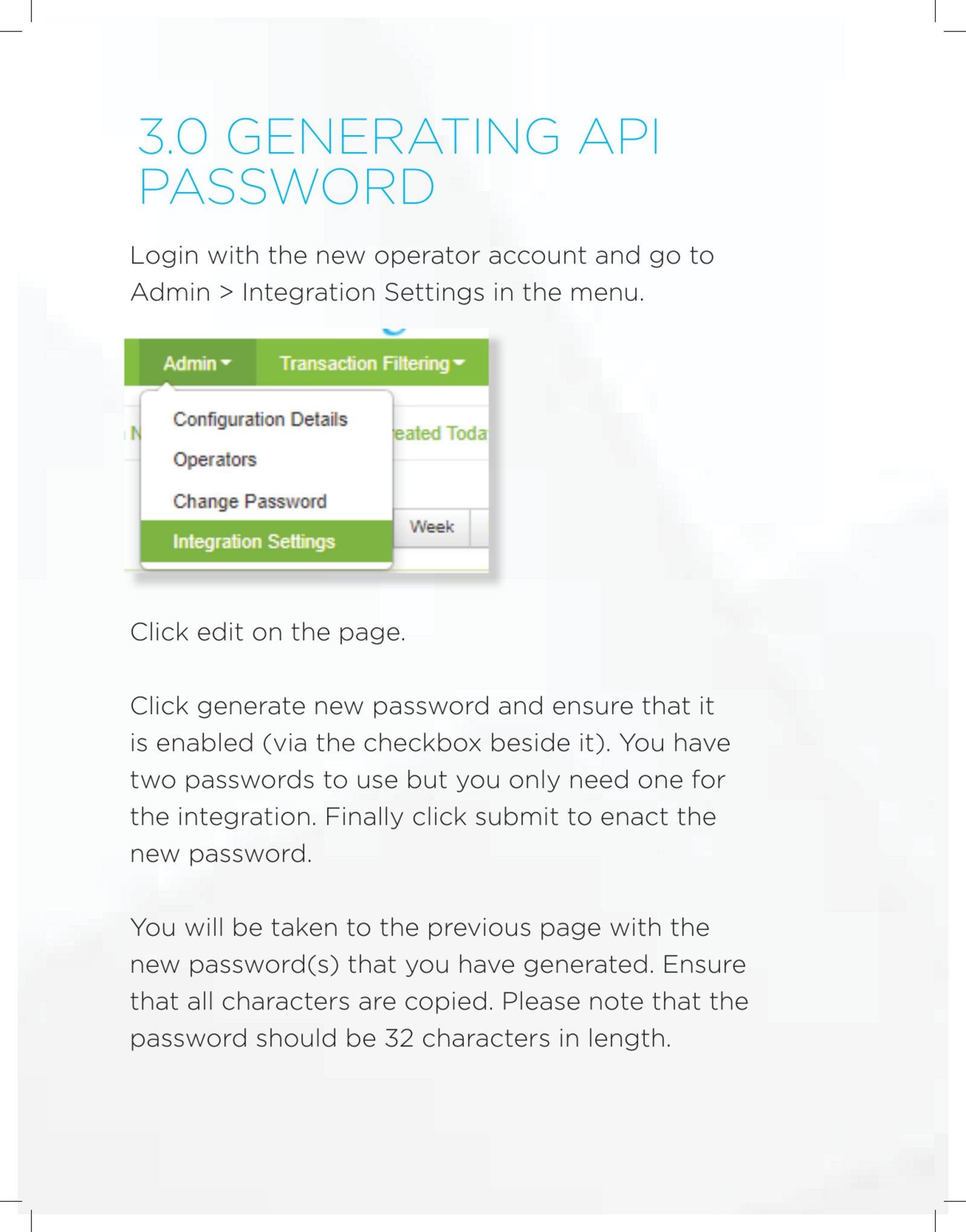
MPGS exposes two password slots so a password can be rotated without an immediate outage. Genius Checkout needs one enabled password; use Password 1 unless your bank or acquirer has instructed you to use Password 2.
Configure MPGS Direct API
Open Gateways, choose MPGS Direct API, and click Configure.
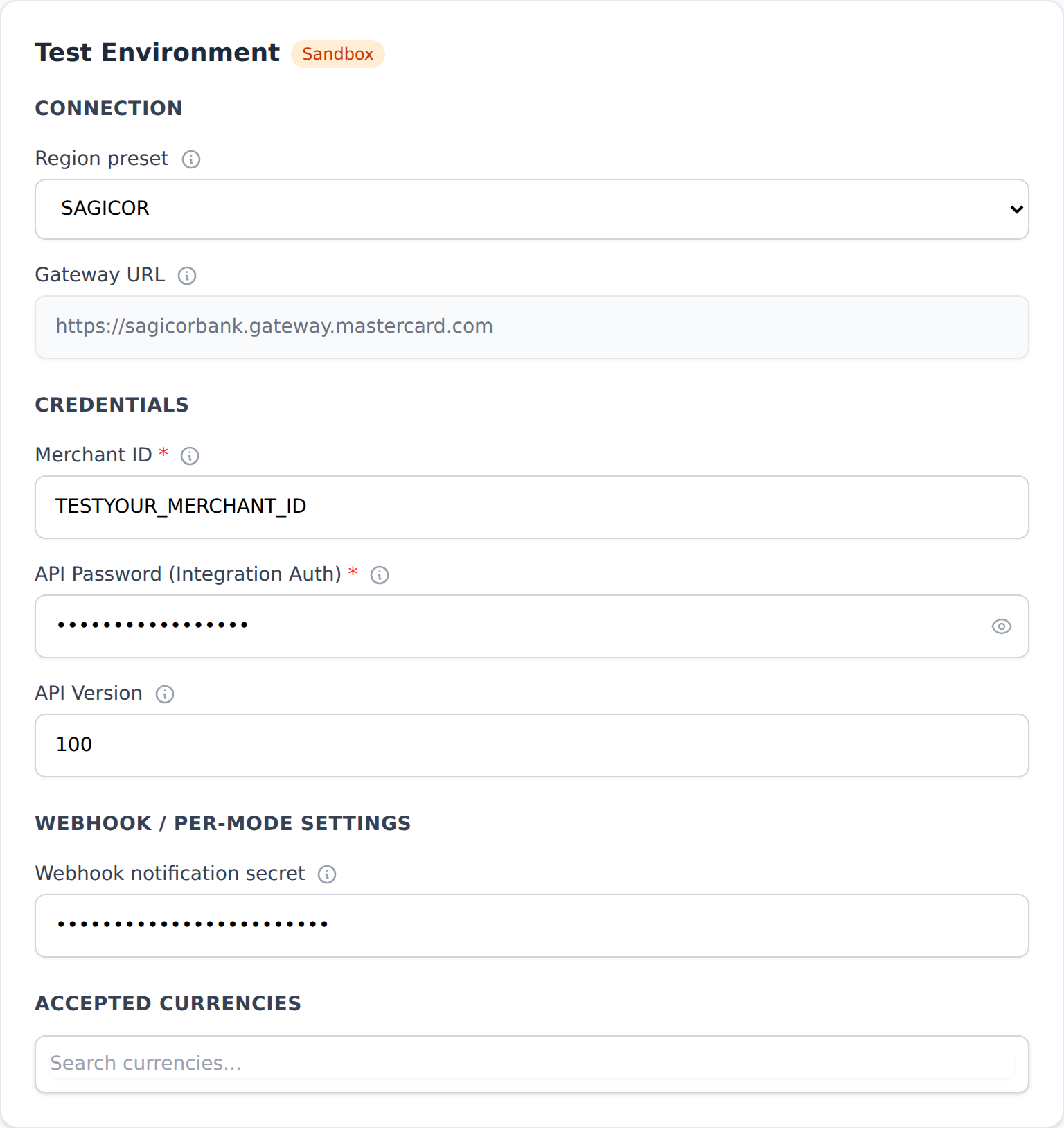
Complete the Test and Live cards independently:
| Genius Checkout field | Enter this | Source |
|---|---|---|
| Region preset | Select the preset for your provider; for example, SAGICOR for Sagicor profiles | Your bank/acquirer |
| Gateway URL | Auto-filled by a supported preset; for example, https://sagicorbank.gateway.mastercard.com for Sagicor | Derived by Genius Checkout or supplied by your provider |
| Merchant ID | Exact test or live Merchant ID | Your bank/acquirer |
| API Password (Integration Auth) | The enabled API password from Integration Settings | Created by you in the MPGS portal |
| API Version | Leave 100 unless the bank explicitly requests another version | Genius Checkout default / bank instruction |
| Webhook notification secret | Leave blank unless MPGS notifications have been coordinated with Genius Checkout support | MPGS notification configuration |
| Accepted currencies | Only currencies enabled on that specific merchant profile | Your bank/acquirer |
Enter the Merchant ID exactly as issued. Genius Checkout automatically constructs the MPGS API username as merchant.<Merchant ID> when authenticating, so do not add merchant. to the field yourself.
For a custom MPGS host, select CUSTOM and enter the complete HTTPS gateway base URL provided by the acquirer. Do not include /ma or an API operation path.
Example: Sagicor test and live profiles
| Environment | Region preset | Merchant ID | API Password |
|---|---|---|---|
| Test | SAGICOR | The Sagicor test ID, commonly TEST + live ID | API password generated for the test profile |
| Live | SAGICOR | Live Merchant ID | API password generated for the live profile |
Choose MTF only when the bank has specifically issued a Mastercard Test Facility profile and directed you to test-gateway.mastercard.com.
Direct API behavior
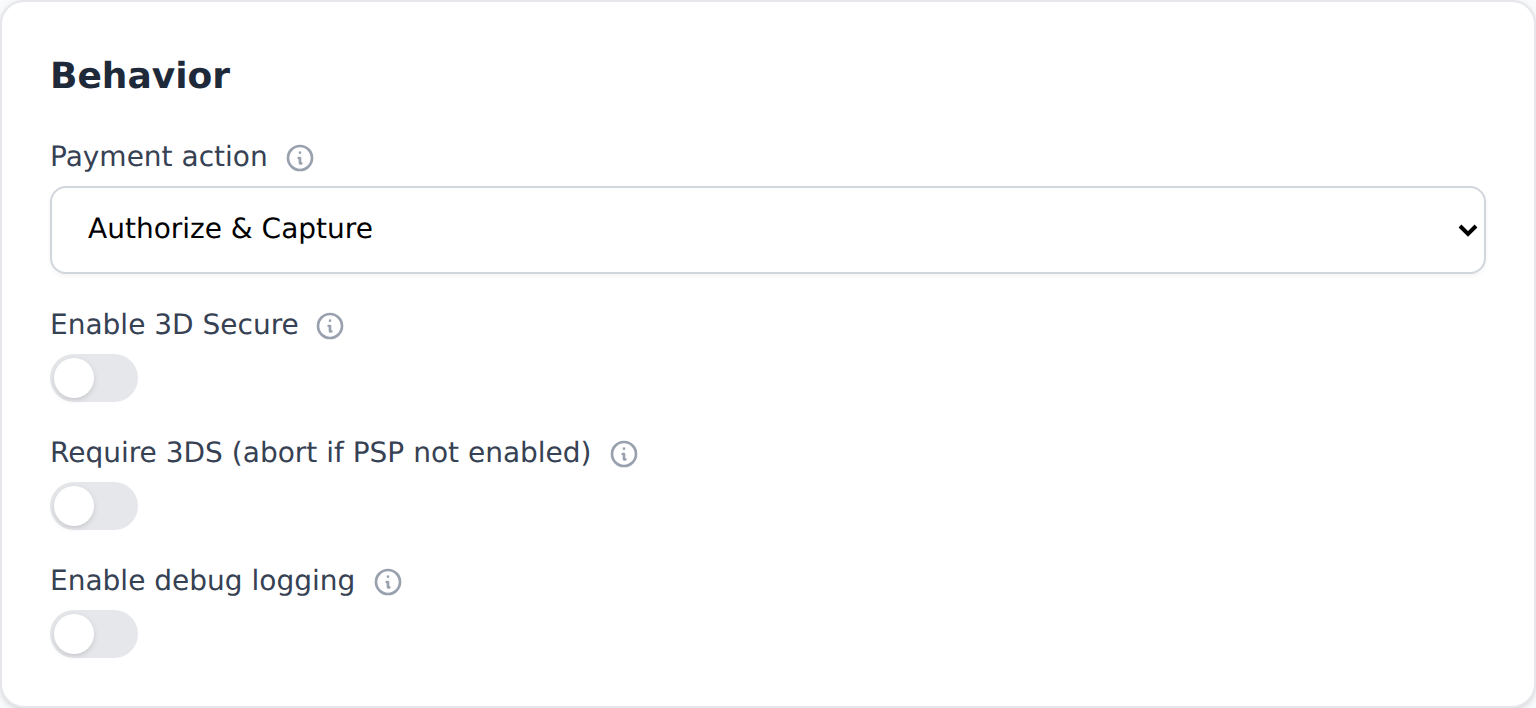
| Field | What it controls |
|---|---|
| Payment action | Authorize & Capture charges immediately. Authorize Only places a hold that must later be captured or voided. |
| Enable 3D Secure | Starts MPGS payer authentication. Enable only after the bank has activated 3-D Secure on the profile. |
| Require 3DS | Stops the payment if 3-D Secure cannot run. When off, an eligible payment may fall back to non-3DS processing. |
| Enable debug logging | Diagnostic logging. Keep this off in production unless Genius Checkout support requests a short troubleshooting window. |
| Order ID prefix | Up to five characters placed before the order ID sent to MPGS. Use a unique prefix if one MPGS profile serves multiple stores. |
| Order description template | Description sent with the order. {order_id} is replaced with the real order reference. |
Before selecting Authorize & Capture, ask your bank or acquirer—for example, Sagicor—to confirm that PURCHASE/PAY is enabled. Before selecting Authorize Only, confirm that AUTHORIZE and CAPTURE are enabled and ask how long authorizations remain valid.
Configure MPGS Hosted Payment Page
Choose MPGS Hosted Payment Page when MPGS should collect the buyer's card details.
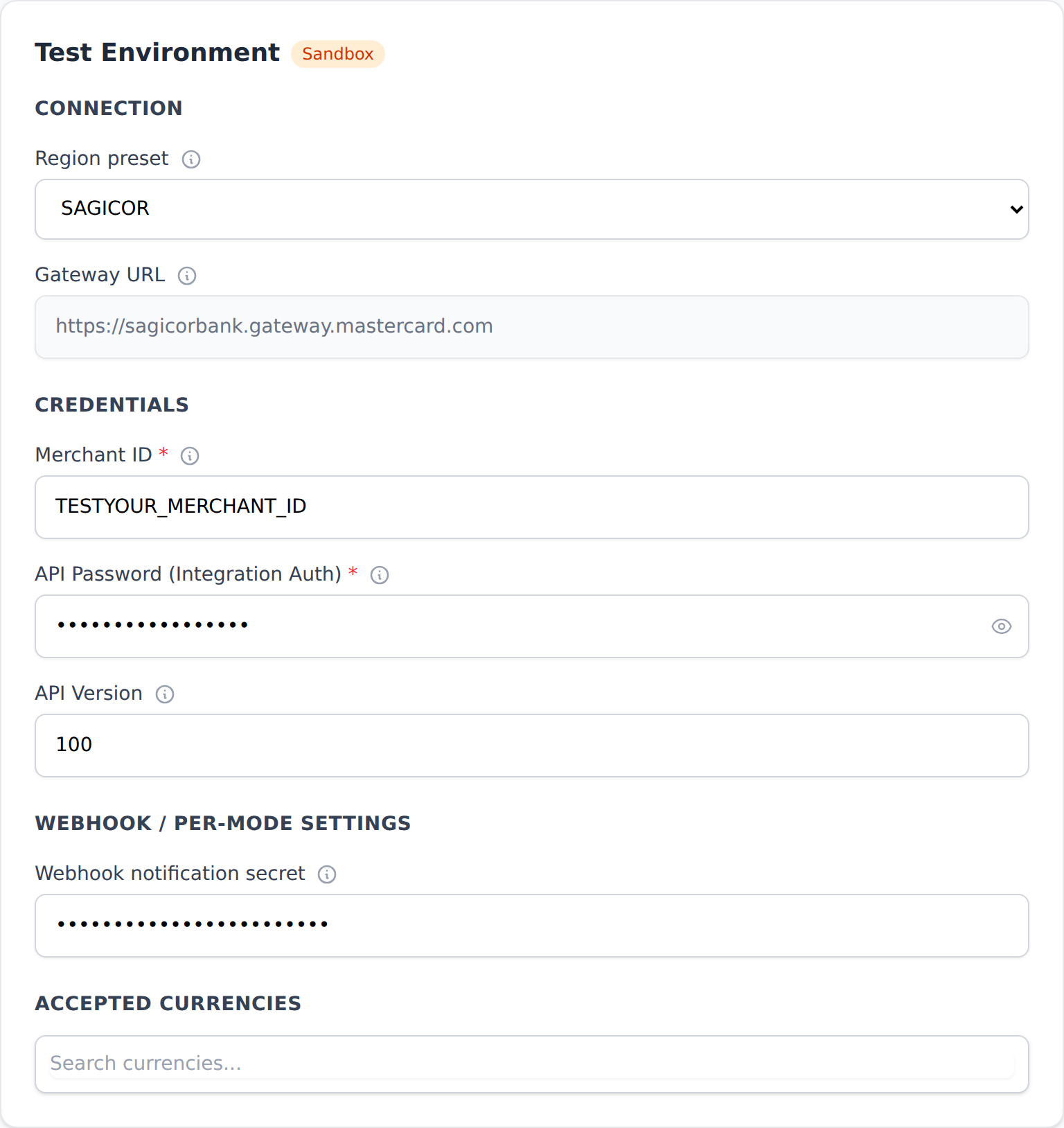
The connection and credential fields use the same mapping as Direct API. The merchant profile must also have Hosted Checkout enabled.
Hosted payment behavior
- Authorize & Capture sends a Hosted Checkout
PURCHASEoperation. - Authorize Only sends
AUTHORIZE; capture or void the transaction later from Genius Checkout or the connected platform. - 3-D Secure is handled by the MPGS hosted flow and merchant profile, so the Direct API 3DS toggles are not shown.
- Saved cards and subscription renewals are not available through the current MPGS Hosted Payment Page integration.
Merchant branding
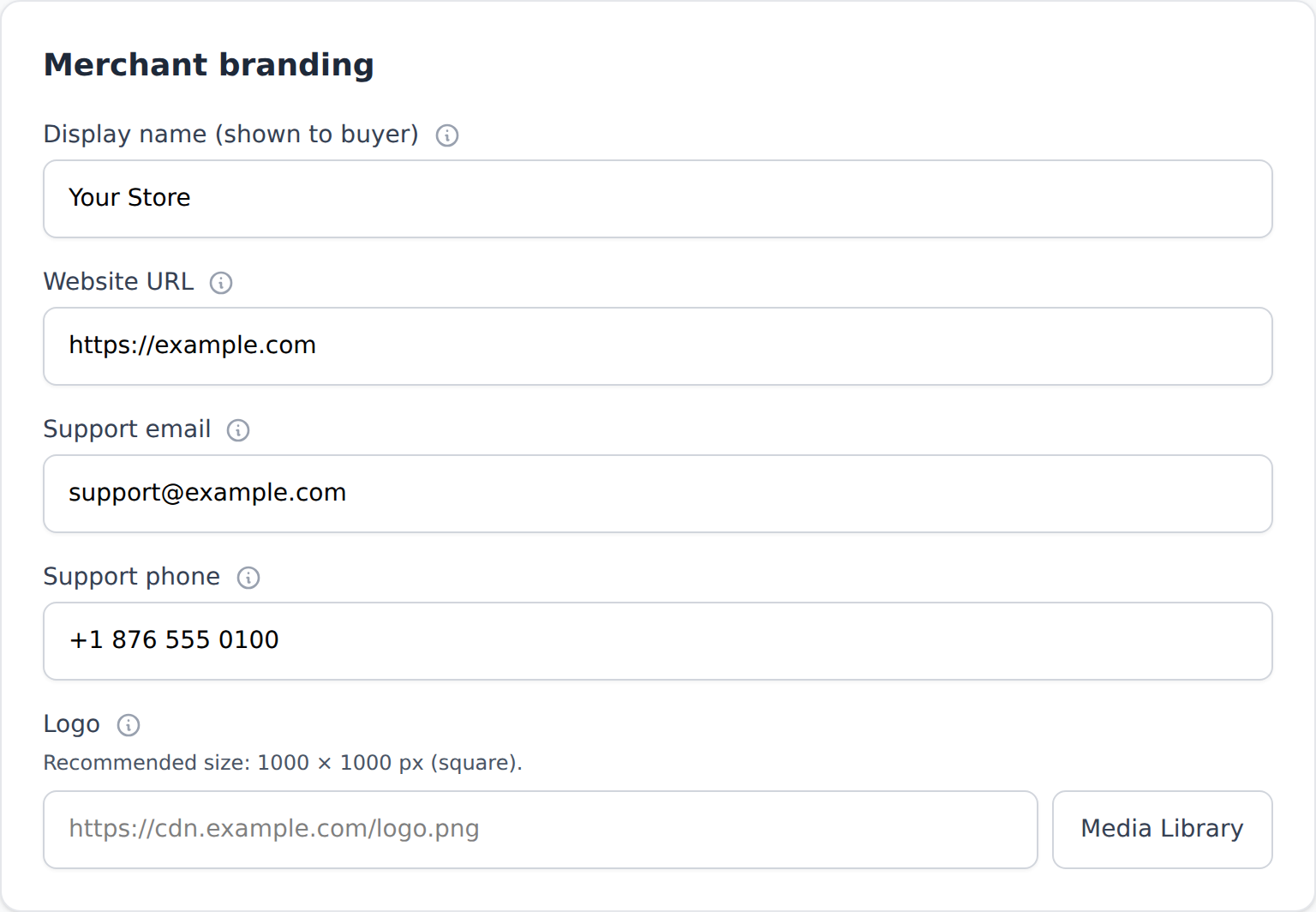
| Field | Guidance |
|---|---|
| Display name | Trading name shown to the buyer. MPGS allows up to 40 characters. |
| Website URL | Public website URL, including https://. |
| Support email | Customer-service email shown on the hosted page. |
| Support phone | Customer-service phone number, including country code. |
| Logo | Select an image from the Genius Checkout media library or provide a public HTTPS URL. Keep the artwork square and centered. |
| Merchant address | Registered business address shown by MPGS. Use the correct country and state/province/parish values. |
Genius Checkout accepts a high-resolution square source image. MPGS displays the hosted-page logo in a much smaller area and its current API documentation recommends a 140 × 140 px rendered image with a maximum height of 140 px. Keep important artwork away from the edges so it is not cropped.
Webhook notifications
MPGS can notify Genius Checkout when an order changes after the buyer leaves the hosted page or after an asynchronous operation.
- Notification URL:
https://app.geniuscheckout.com/webhooks/mpgs - The URL must use HTTPS.
- Notification delivery must be enabled in MPGS Merchant Administration.
- The notification secret configured in MPGS must match the secret agreed with Genius Checkout.
Coordinate this setting
Do not invent a secret or enable MPGS notifications without contacting Genius Checkout support. Notification authentication is managed as part of gateway onboarding, and an unmatched secret will cause notifications to be rejected.
Bank-provisioning checklist
Ask your bank or MPGS acquirer—for example, Sagicor—to confirm all applicable items in writing:
- Test and live Merchant IDs and gateway URL
- Approved currencies and card brands
- Web Services API access
- AUTHORIZE and CAPTURE
- PURCHASE/PAY if using Authorize & Capture
- VOID and REFUND, including partial refunds
- 3-D Secure for Direct API
- Hosted Checkout for HPP
- Tokenization if using saved cards or subscriptions through Direct API
- Webhook notifications, if required
Test and go live
- Configure only the Test environment first.
- Save and click Test Connection. A successful test creates an empty authenticated MPGS session; it does not charge a card.
- Run the test-card scenarios supplied by your bank or acquirer, including approval, decline, and every required 3-D Secure path.
- If using Authorize Only, test capture and void.
- Test a captured refund.
- Add the separate live Merchant ID and live API password.
- Select only the live currencies enabled by your bank or acquirer.
- Test the Live connection, then process a low-value real payment and confirm it in Merchant Administration and settlement reporting.
Troubleshooting
| Symptom | Check |
|---|---|
| HTTP 401 / wrong API password | Generate or re-copy the API password from Integration Settings. Do not use the portal login password. |
| HTTP 404 / merchant not found | Confirm Merchant ID, region preset, and gateway URL all belong to the same environment. |
| Connection succeeds but PURCHASE fails | Ask the bank to enable PURCHASE/PAY or select Authorize Only. |
| 3-D Secure cannot start | Confirm 3-D Secure is enabled on the merchant profile and test cards are being used only in Test mode. |
| Hosted Checkout cannot start | Confirm Hosted Checkout is enabled and the profile supports the requested currency. |
| Transaction remains pending | Check the return flow, MPGS notification setup, and the transaction in Merchant Administration. |